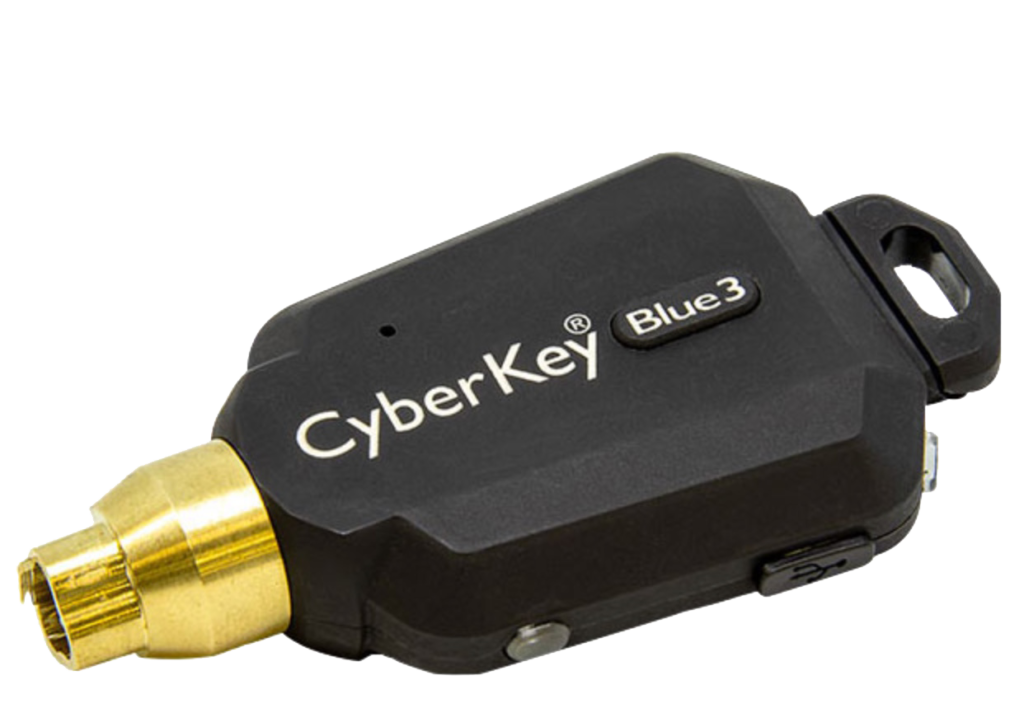
Welcome to this Help Page designed to assist you in the set-up and use of your new Bluetooth-enabled CyberKey. This Key means you will not have to travel to the KeyPad authorisers to update your Key, since you can do it anytime from your Mobile Phone. It also means you can disable your Key when not in use (so if it is lost or stolen, it will not work).
In addition to your CyberKey, you will need an App on your phone called CyberAudit Link. Android Users find this in Play Store. Apple IOS Users find this in Apple Store. Videx Inc publishes the App. Install and then Open.
You need to insert Settings for the Server and Account. The App Menu may have these Settings accessible by three vertical dots.
For the Server Address, enter cawent7.accessmanager.com
For the Account Name, enter UKPN
There will be an option to Verify Account. If you have entered the above details correctly, the App will ask you for an 8-digit number.
What is this number for?
This unique number authorises your phone to link to the database for updating Bluetooth CyberKeys. It is only used once. A new number will be required if you ever have a new phone.
How Do You Get This Number?
It may have been emailed to you in response to an email request to Security. You may contact the UKPN Security Team – or Sellox at 01299 269288.
What Next?
Once your App has been validated, you need to link your Key to this phone. Any Bluetooth CyberKeys can link to your phone – so you can also update the Keys of colleagues if they have left their phones at home. Your Phone acts much the same as the fixed wall KeyPads. It authorises CyberKeys.
- Activate Bluetooth on your Key. Press the Blue 3 button. A beep will indicate the Bluetooth signal is operational.
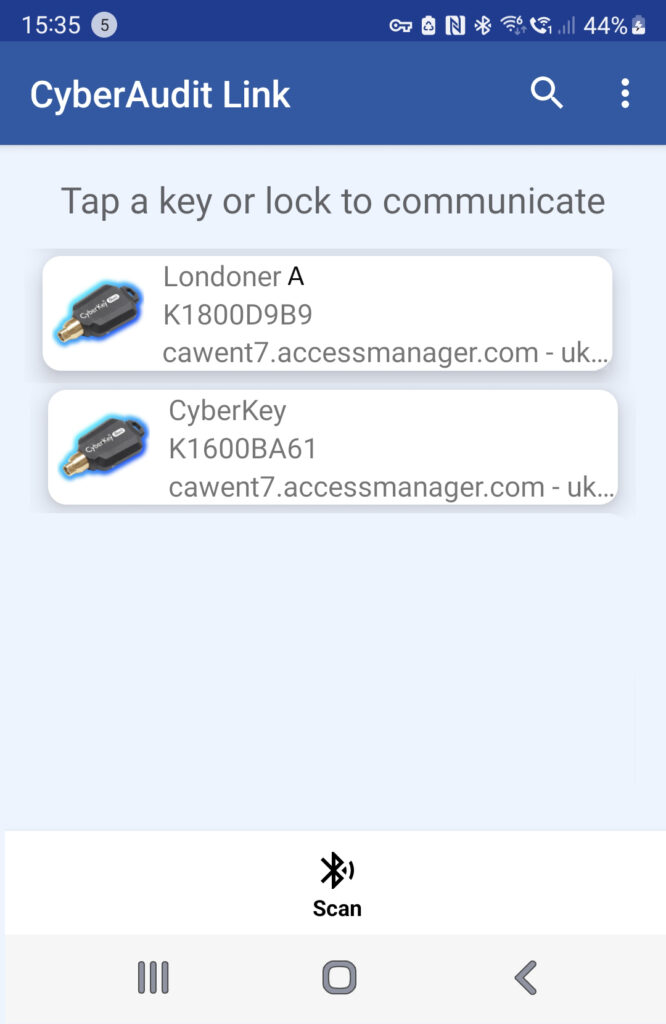
- Scan for CyberKeys. You will see the Scan Option at the base of the App Home Screen. Your Key ID will appear.
- Please just select the Key ID you’d like to update. The Option Sync with Server will appear. Press it.
- You will be asked to enter your PIN to confirm you are the rightful holder of your Key.
- On successful Sync, the Key will say Ready and can be used.
Other Considerations.
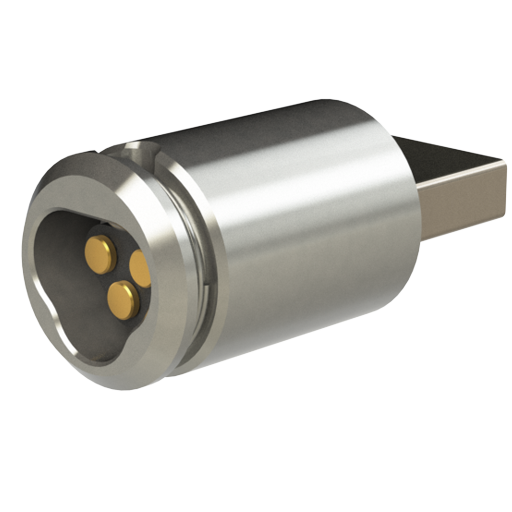
- Please make sure your Key is fully charged before synchronisation. The USB charger is available for this purpose. It will connect via USB to any standard mobile phone USB charger (in the car or at home). The Key also has a Micro USB terminal that can be used for charging.
- On the first occasion of use, you may see the Key perform a firmware update first. This only lasts a few minutes and is only occasionally experienced.
- If you find that you cannot link to the Key, it will be because the Bluetooth signal has terminated. It beacons for about 45 seconds and then stops if no interaction with the App has been activated. Simply press the Blue 3 button to start the Bluetooth signal, and then press Sync on the App.
- Updating (synchronising) your Key does require an internet connection.
- De-activation or re-Activating your Key does not require an internet connection.
Should you have any other questions, please get in touch with your Sellox support team on 01299 269288.